
Our Management Platform has a dedicated document management system to manage all your uploaded files as well documents created within the platform such as electronic forms and electronic registers. Similar to your pc environments documents can be organised in folders with addition of version control and granular permission control.
What Can You Do?
Document storage is bundled with many practical features. These include:
- Cloud File Storage: An organisation’s External files can be uploaded/downloaded through the document storage system. All files are stored within the cloud and can be accessed through a web-browser or via the desktop application.
- Version Control: All files stored in the system are version controlled. This means any changes to a file can be tracked through each version giving transparency to the organisation on document changes.
- Digital Forms: Document storage also stores digital forms created within the platform. Both templates and form records are stored with version control. These types of documents can be open and additional actions can be created.
- Digital Registers: Document storage also stores digital registers. A register is a special document that can list a specific set of records either forms or files. Unlike a file general list, digital registers go deeper where specific fields within a form can be tracked as well as workflow status. Registers also provide reporting tools allowing an organisation to have real-time insights on specific workflows.
- Schedule Document Review: All files stored in the document storage can have a scheduled document review. A scheduled setups a reminder to conduct a review as well as allows the user to leave comments.
- Document and Folder Sharing: An organisation can have complete control who sees which folders and documents, what can actions can be performed e.g. read, edit or delete.
How To Access Document Storage?
Open the side menu in top left hand corner. Click on the ‘Document Storage’ module in the menu.
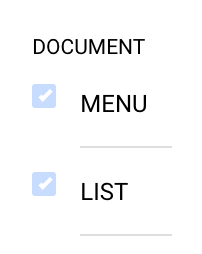
Permissions Required
To access document storage you must have the following permissions DOCUMENT-MENU and DOCUMENT-LIST.
Basic Navigation
Desktop View
Left hand side is the navigation bar. Here you have navigation shortcuts including your custom shortcuts.
Right hand side is the document list view. Here all the folders and documents are listed. To see the folder contents click on the ‘select’ button next to the folder name.
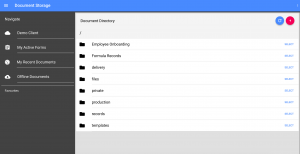
Desktop Document Storage View
Mobile View
The navigation bar will be displayed. Here you have navigation shortcuts including your custom shortcuts. Click on a shortcut and you will be displayed the document list view.
Document List Actions
To navigate back from a folder click on the return button next the folder name in the nav button.
To get more details on a document click on ‘select’ next to the document name. This will open the document record card. The Document record card will detail:
- General details
- Version
- Document Reviews
- Sharing – ie to whom the document is shared with
Depending on the document type there will be additional actions the can be performed in the document list view. For example for digital forms you are able to open the form directly via the ‘open’ button. For files stored you can download the file via the ‘download’ button.
To perform any actions including renaming folders, moving documents, adding new documents etc. click on the arrow button at the top of the document list area on the right hand side.